Modelling a Steel Building Lower Extension with Matching Roof Orientation
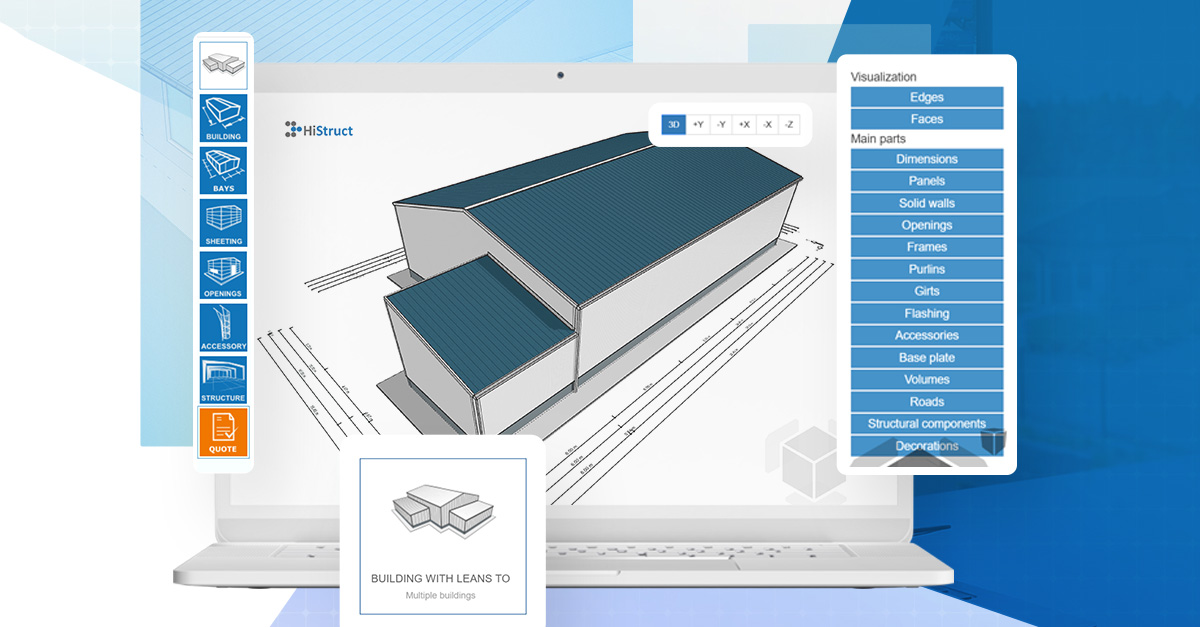
Creating building extensions is a common part of many projects. With the HiStruct Buildings 3D configurator, you can easily define how individual structures connect — including cases where the roof orientation needs to remain consistent.
This guide focuses on a specific case: creating a lower extension with matching roof orientation. In this scenario, the standard workflow may not lead directly to the desired result, so a slightly different approach is needed.
We’ll show you a simple solution that helps you achieve the desired geometry while maintaining full control over the model. Explore the step-by-step workflow below.
How to Create a Building and a Lower Extension with Matching Roof Orientation
When creating a building and a lower extension with matching roof orientation, it is necessary to create the extension roof as a main building first and then the large hall as a "lean-to" part.
1. In the Templates tab, choose "Buildings with leans-to" and open the project.
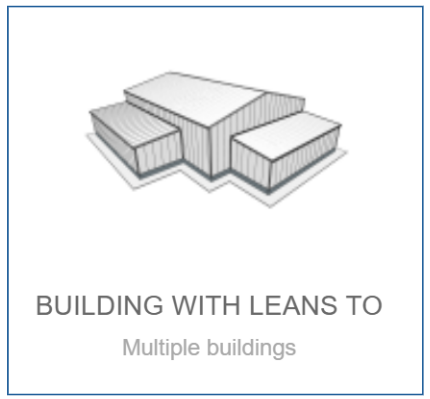
2. Create a building extension with the yellow button on the gable wall. Note: You need to use extension "Add building":
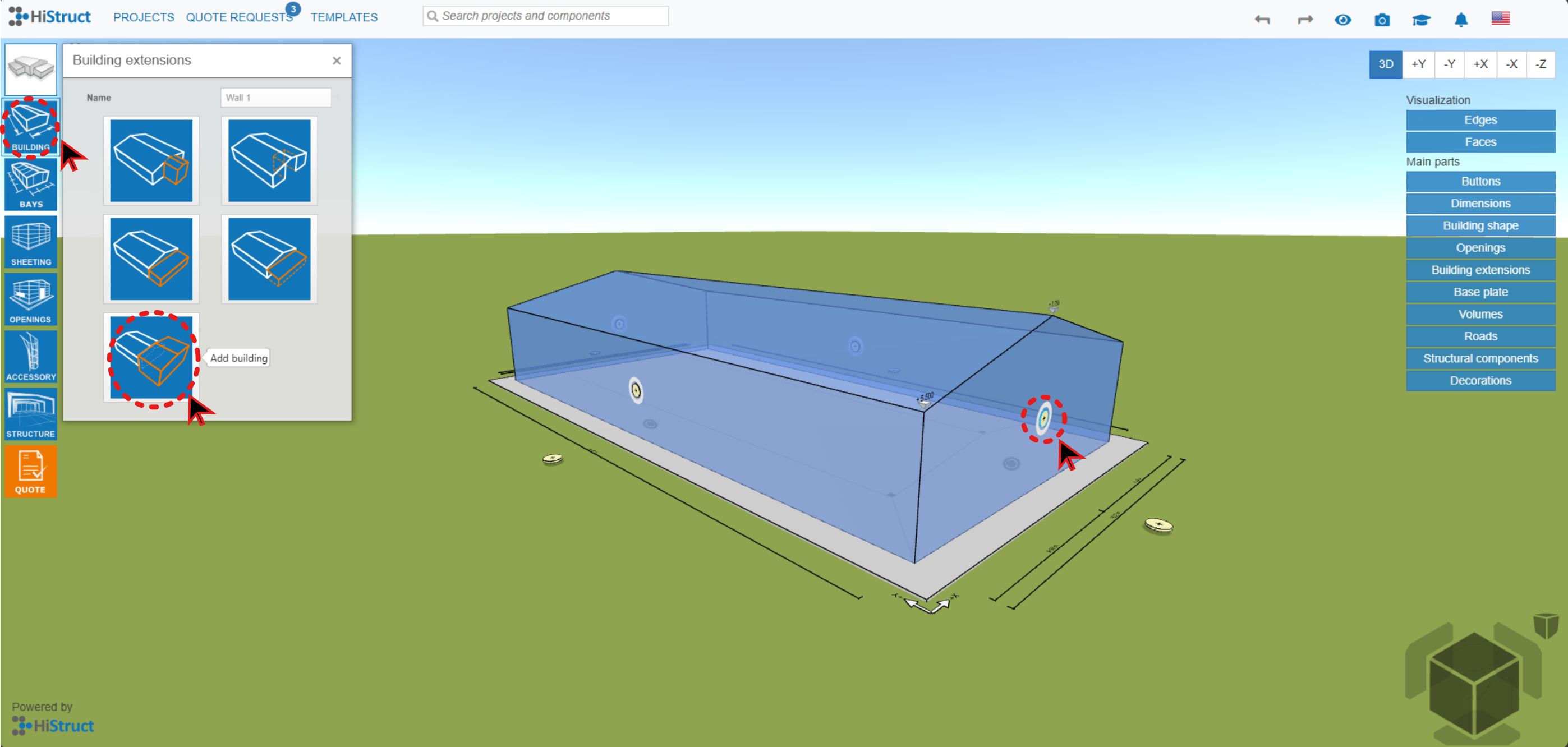
3. Now you can start creating the extension roof - this part you need to create from the main building in the model:
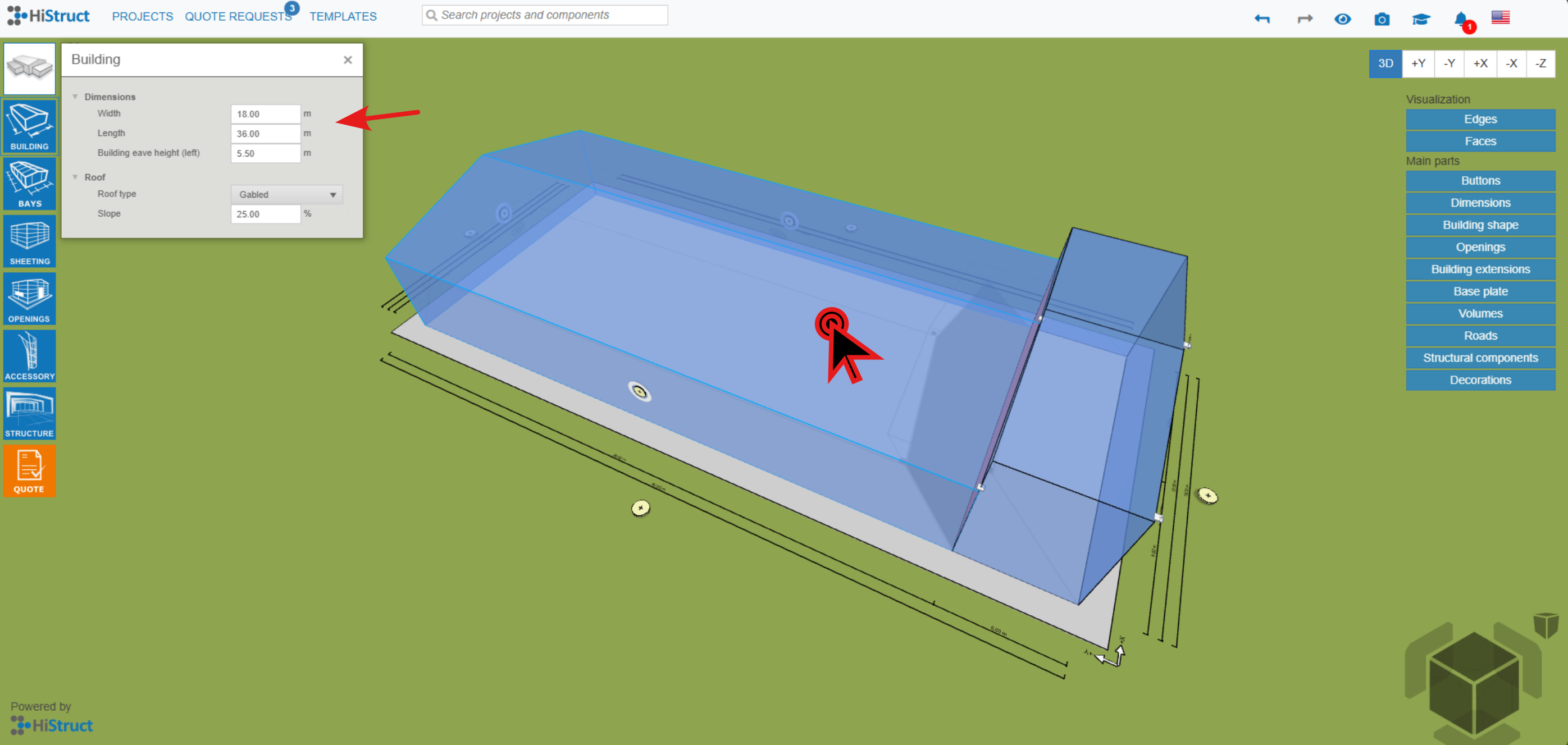
4. Set the requested dimensions of the roof extension:
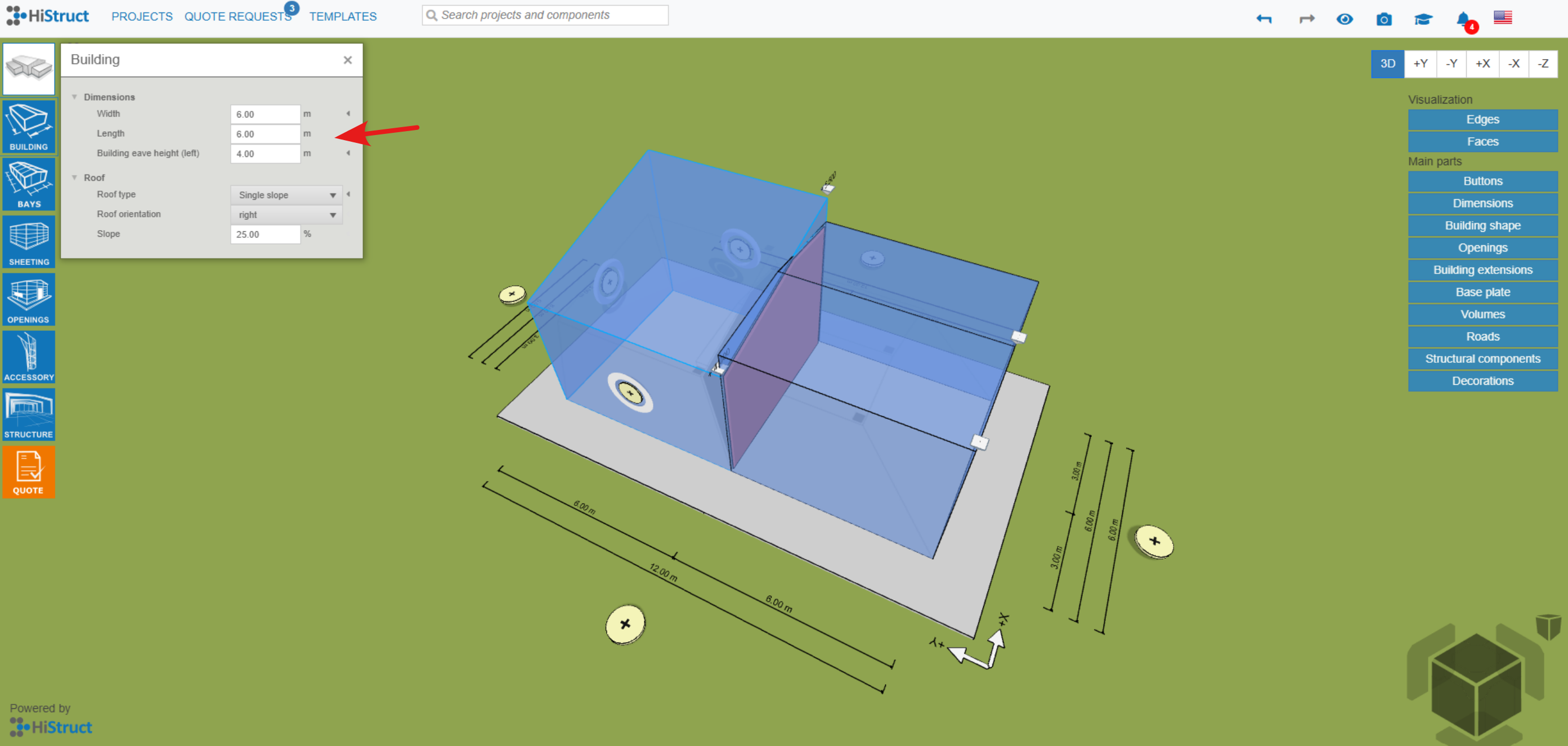
5. Edit the dimensions of the large hall (you can set some values negative):
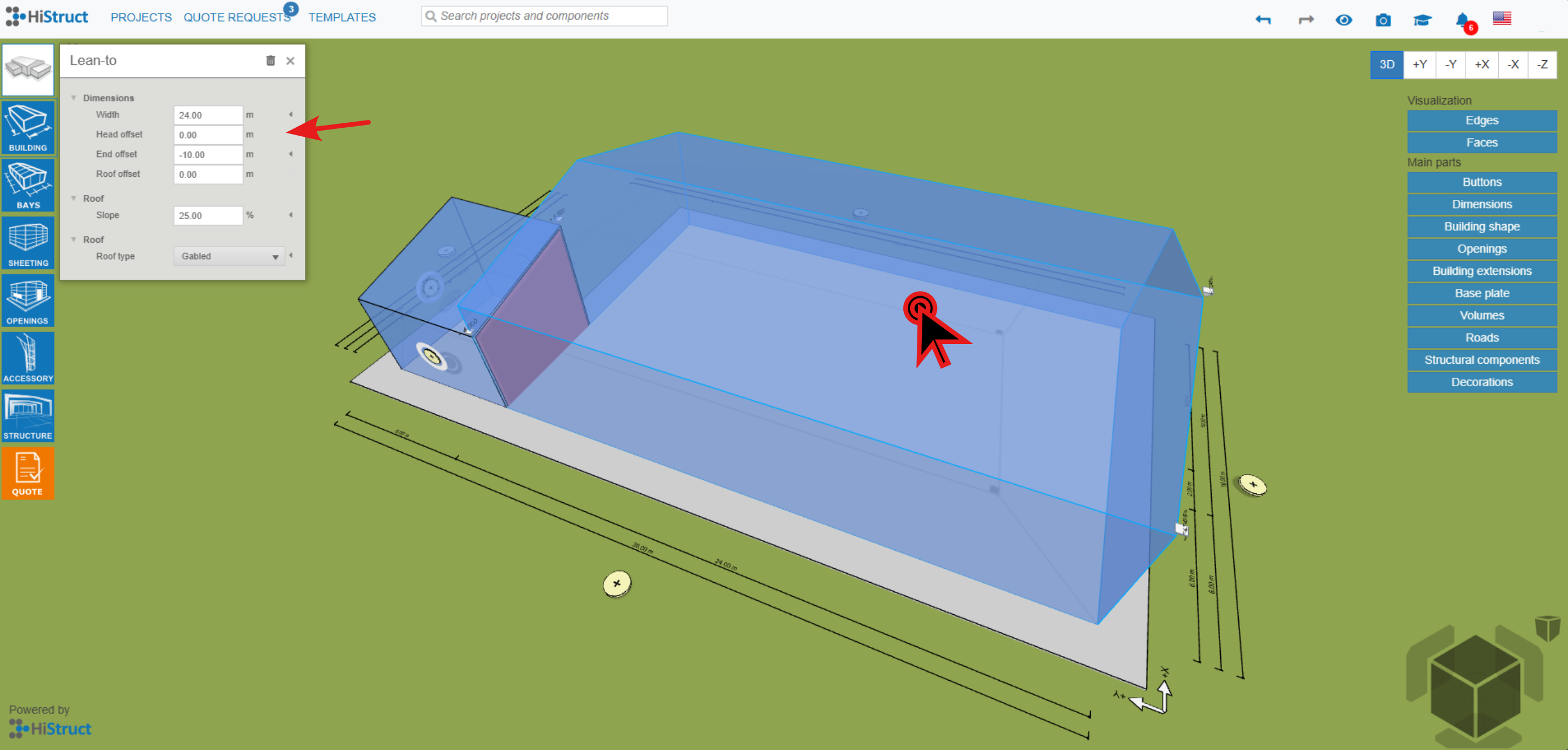
6. The final result:
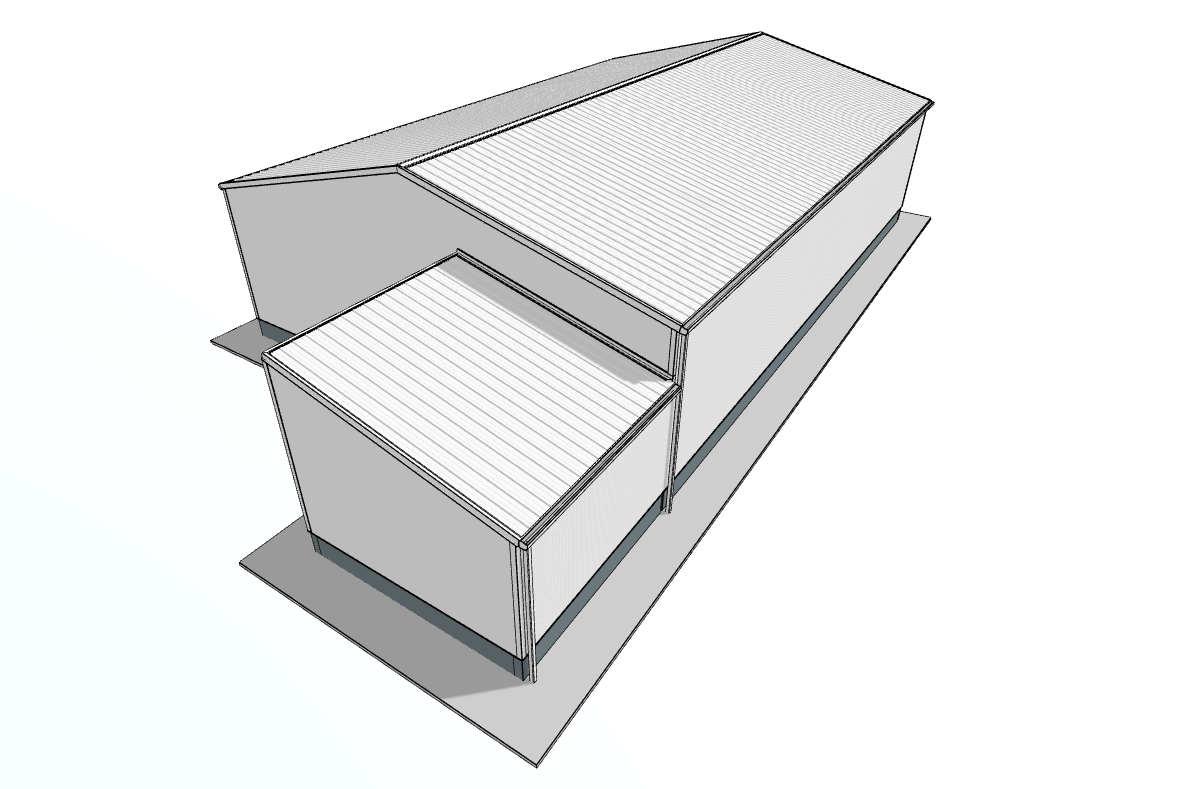
This approach allows you to create a lower extension with matching roof orientation while maintaining clean geometry and full control over the model.